
Have a Question?
Getting Connected
Getting Connected
This page covers several methods for connecting to the ARC clusters via terminal or ssh interfaces. For a graphical interface please see our article on connecting through open OnDemand. Please select your operating system from the tabs below for connection instructions.
NOTE: For off-campus access to the ARC users will need to be logged in to the UC VPN.
File Transfer
After connecting to the ARC you will be able to transfer files to and from the cluster. For more information about file transfer on the various systems please visit:
Transferring Files (need new link)
Windows
To login on a Windows machines, you will need to use an ssh client.
UC recommends you use PuTTY which is a free and open-source ssh
application.
Once installed, connect to: arcc.uc.edu
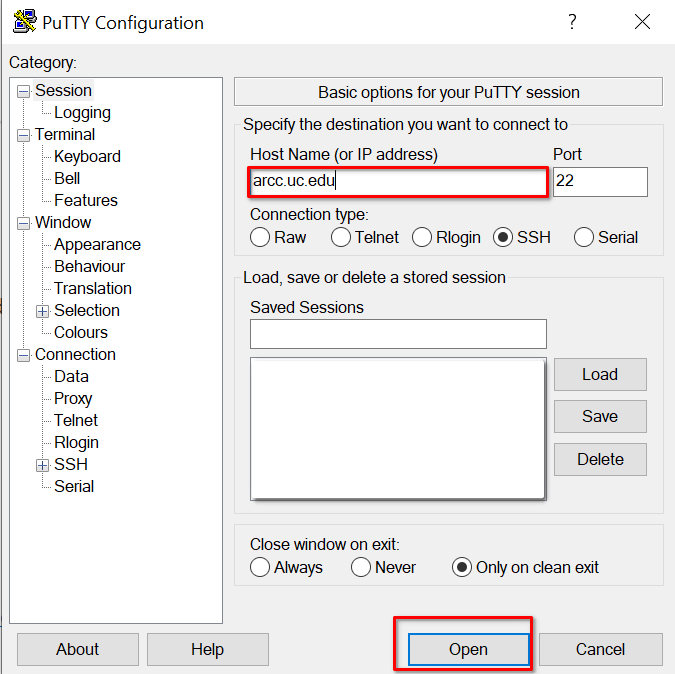
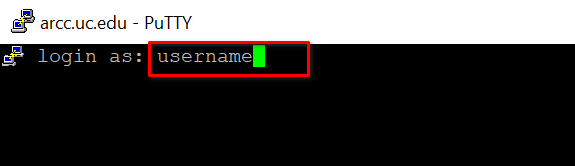
If prompted, verify the SSH fingerprint is valid:

ARCC.UC.EDU valid SSH key fingerprints
ECDSA key
MD5: 9c:6c:c8:76:a1:f2:ce:89:ca:99:52:1c:dd:9b:08:07
SHA256: F0Ol1ut8DowsTxNDaIDtwtVzqA/TCyTvBWxbNwspROw
ED25519 key
MD5: 51:58:2e:e9:44:08:9a:5e:83:39:85:be:15:68:6d:96
SHA256: jdn5SYwZTCAihsK8V9PrCJvlNiqFl5sx2Uu4e5bo7gY
RSA key
MD5: e8:66:5e:ea:ef:cc:18:a6:34:91:d8:92:bf:70:c4:d2
SHA256: MxRI8uO5oJ0EEJAjk+7pTm7AP/m5NGQZ4QHw+IVuEfg
OSX and Unix/Linux
On OSX and Linux, you can login using a terminal. To do so, enter the following string in your terminal:
ssh username@arcc.uc.edu
Where you will enter your 6+2 as your username. After submitting the SSH request you will be prompted for your UC password.