
Have a Question?
Open OnDemand
Open OnDemand
Open OnDemand is a web portal that provides access to HPC file systems and clusters. It allows to view, edit, upload and download files, create, edit, submit and monitor jobs, run GUI applications, and connect via SSH, all via a web browser and with a minimal knowledge of Linux and scheduler commands.
You can read Open OnDemand’s detailed documentation page here for more information.
Connecting to Open OnDemand
To connect, point your web browser to https://ondemand.arc.uc.edu and authenticate with your UC user name and password.
File Management and Transfer
The Files menu allows one to view and operate on files in user’s home directory. File Transfer and Management help page provides details on its use. This is complementary to opening a FastX remote desktop and using that desktop’s file manager, and using SCP based remote transfer tools like WinSCP.
Job Management
Jobs can be monitored, created, edited and submitted with the job management tools under the Jobs menu. Job Management help page provides more information on the use and features. This serves as a GUI alternative to SLURM scheduler commands (Active Jobs menu item) and allows to write SLURM batch scripts with the help of pre-defined templates (Job Composer menu item). If you don’t see a job template you would like, contact UC Advanced Research Computing.
Shell Access
The Clusters tab provides links to shell access to all ARC clusters interactive nodes. The shell terminal is similar to many other tools that provide terminal access.
ARCC Desktop
First subset of the Interactive Apps tab allows to submit an interactive job to a cluster and attach to it via a remote interactive desktop connection. One thus gets a fully functioning desktop on a cluster compute node, from which can be run GUI applications.
For example, to open a new interactive desktop on a compute node, we first select menu Interactive Apps – ARCC Desktop, obtaining the following dialog:
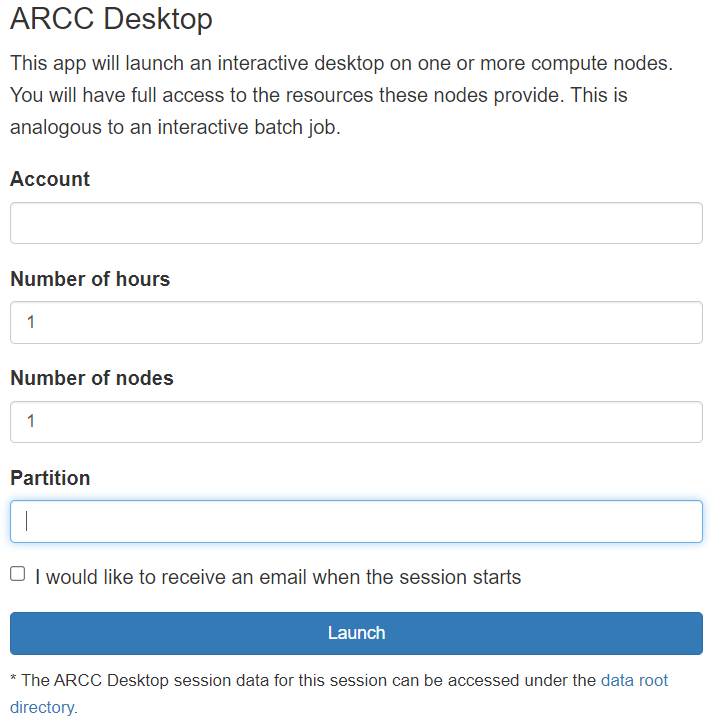
After pushing the Launch button, the job gets submitted. A new window appears informing that the job is being staged. Once the job starts, the window is updated with the Interactive Desktop launch button (Launch noVNC in New Tab). There is also possibility to get a view only web link to this interactive desktop (View Only button) that one can share with their colleagues (who have access to ondemand).
Once we click on the Launch noVNC button, a new browser tab opens with the desktop at the compute node. This interactive session will stay alive if one closes the browser tab. To remove the session, push the red Delete button, which cancels the job and the interactive session.
Jupyter Notebook
Jupyter notebooks allow for interactive code development. Although originally developed for Python, Jupyter notebooks now support many interpretative languages. Jupyter Notebook runs on a cluster compute node using dedicated resources, and can be launched by choosing menu Interactive Apps -> Jupyter Notebook. A job submission screen appears:
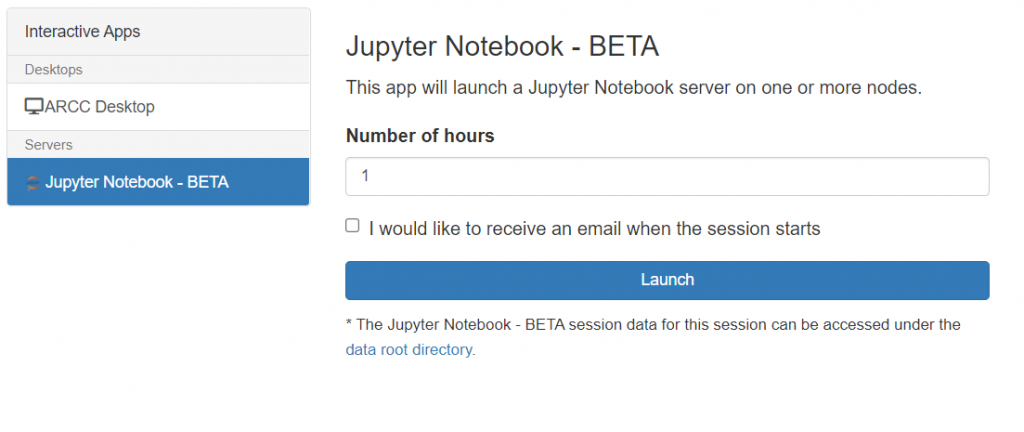
Set the job parameters. Unless using numerical libraries like NumPy, which are thread-parallelized, it is not advisable to choose more than one CPU.
Note: If you are using your own Miniconda module, make sure that you have installed the Jupyter infrastructure by running conda install jupyter before attempting to launch any Jupyter job.
Then hit Launch to submit the interactive job. The job gets queued up and when it starts and the Jupyter is provisioned, following window appears:
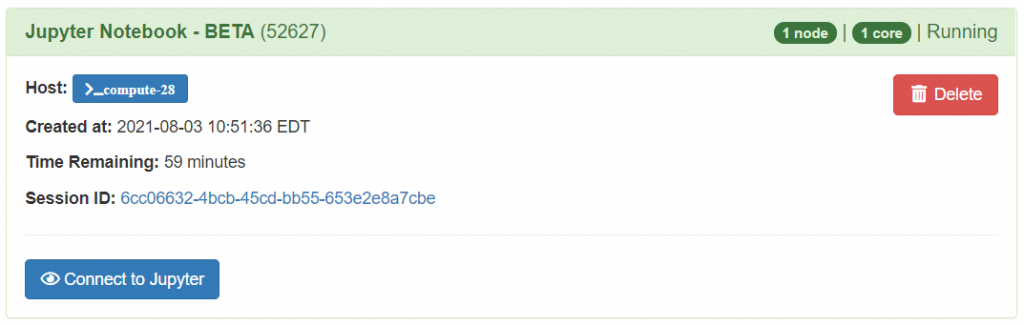
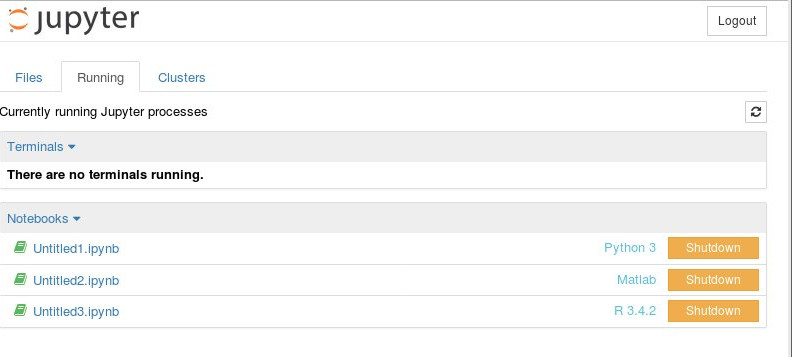
Click on the Connect to Jupyter button to open a new browser tab with the main Jupyter interface. Note that the Running Jupyter tab shows active notebooks, for example:
If you need further help contact IT@UC Help desk.
Apps In Development
The following apps are currently in development and will be available in the future:
- Matlab
- Rstudio
- Ansys Workbench