
Have a Question?
Intro to ARCC 2
Workshop video: Intro to ARC resources: HPC computing/analysis tools for research and education
ARC clusters can be accessed only if your computer is connected to the UC network(on campus) or through UC VPN(off campus). If you are off campus, you will need to connect your device to UC network through the UC VPN service.
Read the VPN Instructions.
Please contact us at ARC_INFO@.uc.edu for any further questions regarding the usage of the cluster.
Login to ARCC 2
Once your ARC account is created, you will be notified that your access has been provisioned.
Login through Windows Devices
Using Putty: The users can login to ARCC 2 using ssh in windows command prompt or through a installing an open source ssh client: Putty. You can download Putty here.
- Once installed, connect to: arcc2.uc.edu
- Click open and you should see a command prompt window asking for your username and password. Enter your credentials and hit enter.
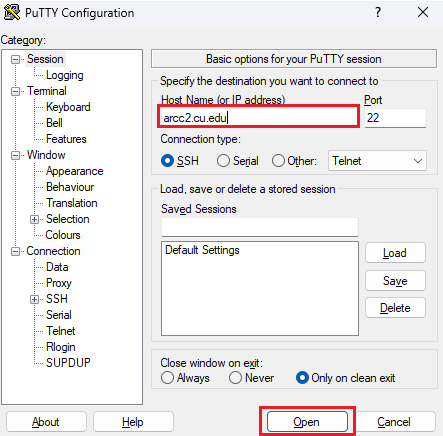
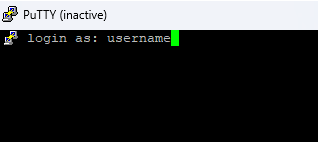
Using Command Prompt ssh: Depending upon the version of windows on your machine the user can access the ssh tool available in the command prompt.
- Open command prompt using the windows search bar.
- Type ssh username@arcc2.uc.edu and hit enter. And then enter your password.

Login through Linux and Mac Devices
- Open terminal and type ssh username@arcc2.uc.edu . Enter your password and you are all set!
File Transfer
Windows Devices
To transfer files to and from ARCC on a Windows machine, you will need to use an FTP client. UC recommends you use the WinSCP which is a free and open-source FTP client. You can download WinSCP.
Once you install WinSCP, open the tool and click Session and click on New session.
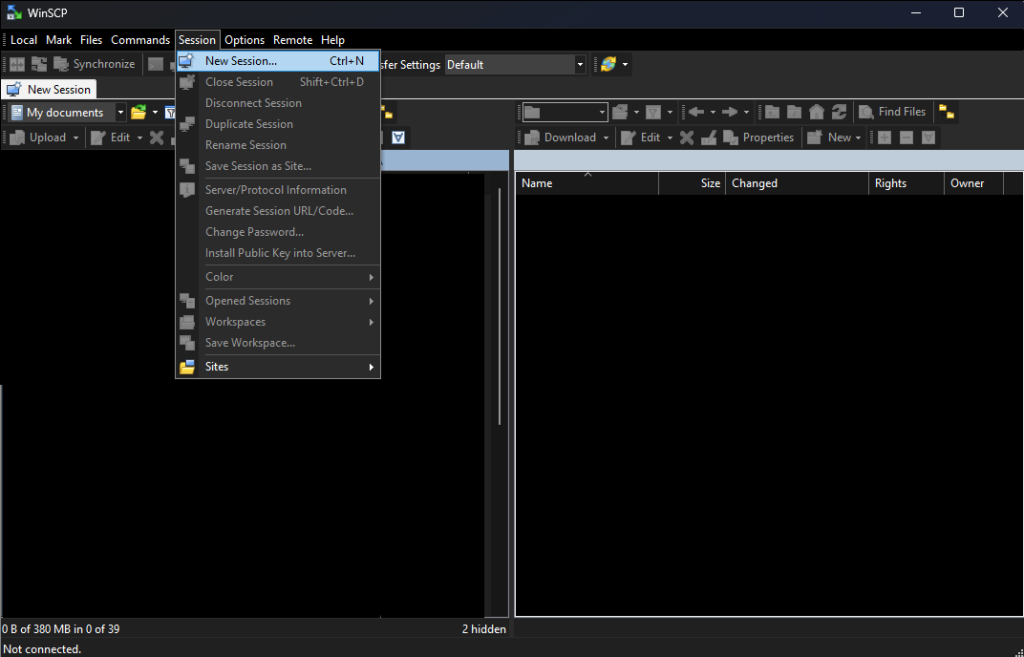
Enter your login credentials and click on login
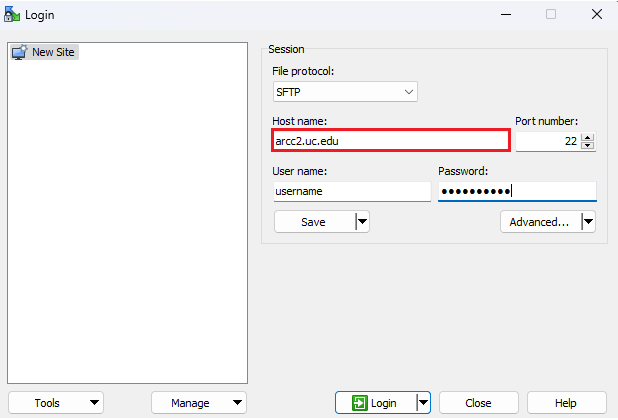
Linux Devices
To transfer files to and from ARCC on a Linux machine, you can use the built in File manager. On an ubuntu-18.04, the ‘Other Locations’ option in the file manager can be used to ‘Connect to Server’ which will mount the user home directory. A similar option should be available for all the different flavors of Linux in the file manager.
Mac Devices
To transfer files to and from ARCC on a Mac, you will need to use an FTP client. UC recommends you use FileZilla which is a free FTP client for Mac.
You can download FileZilla here: https://filezilla-project.org/
Other Tools
- Command Prompt: To transfer from your machine to arcc2 you can use scp command
- Example Syntax: scp -r /path/to/files username@arcc.uc.edu:/destination/path/in/arcc
Using a software
To check out the software installed on the cluster, you can use the following command
$ module avail

To use a specific software package, enter the command
$ module load packagename/version
(L) denotes the loaded module
(D) denotes the default module
Brief intro to slurm
Jobs are best run in batch mode. Please use a script to submit your jobs. A typical slurm script is given below:
- Create your submit file:
#!/bin/bash
# set the partition where the job will run
#SBATCH --partition=public
#Set your qos that you want to run under
#SBATCH --qos=ENTER-YOUR-QOS
# set the number of nodes
#SBATCH --nodes=1
# set the number of CPUs to use per node
#SBATCH --ntasks-per-node=1
# set max wallclock time
#SBATCH --time=01:00:00
# set name of job
#SBATCH --job-name=test123
# mail alert at start, end and abortion of execution
#SBATCH –mail-type=ALL
# send mail to this address
#SBATCH –mail-user=user@mail.uc.edu
# run the application “appCPU”
appCPU
2. Save the batch script as batchjob.sh
3. Submit the batch job to slurm, run the following on the terminal: sbatch batchjob.sh
Please choose your resources (number of nodes, number of tasks, wall time) carefully, as they will impact the job priority, which in turn will effect when the job starts during heavy traffic.
Please checkpoint your jobs frequently, and run your applications in such a way so as to resume from the latest checkpoint, in case of a requeue.
Partition public is the default when a partition is not specified by the user. It is recommended that users not specify the nodes to run their jobs, unless absolutely necessary, and let slurm decide the best location to run the job by specifying just the partition.