Have a Question?
Transferring files using Globus
Globus is a high-performance file sharing platform that allows for the transfer of files that are either too large or too numerous for the SCP or SFTP utilities.
Globus can facilitate file transfer between your personal computer and the ARCC2 or between the ARCC2 and another institution’s storage system where a Globus endpoint is installed.
Installing a Globus personal endpoint
The first step before you are able to transfer files using Globus is installing a personal endpoint on the local machine. This will allow you to transfer files from or to this machine.
- Begin by navigating to the Globus website and clicking the log in button.
- This will take you to the screen shown below. From the drop down menu select the University of Cincinnati Main Campus organization.
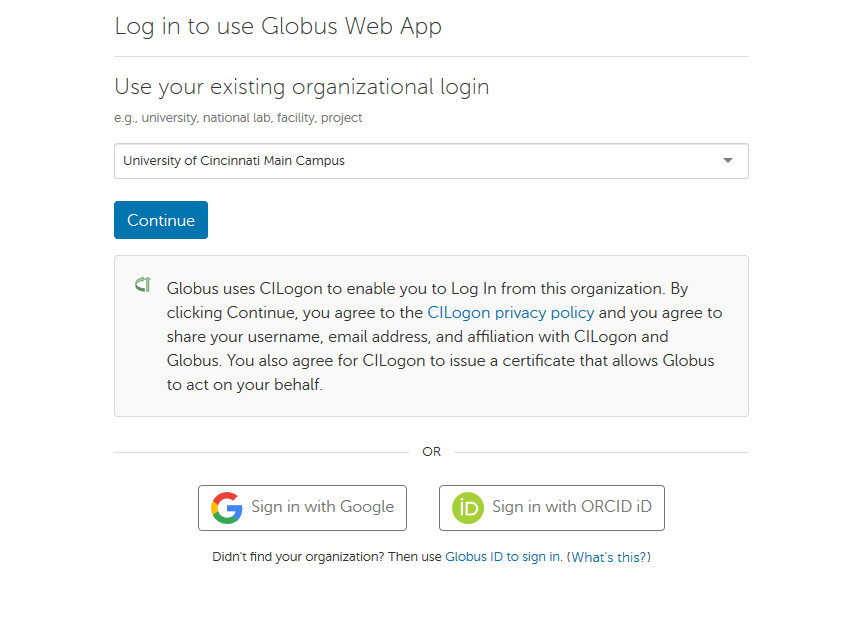
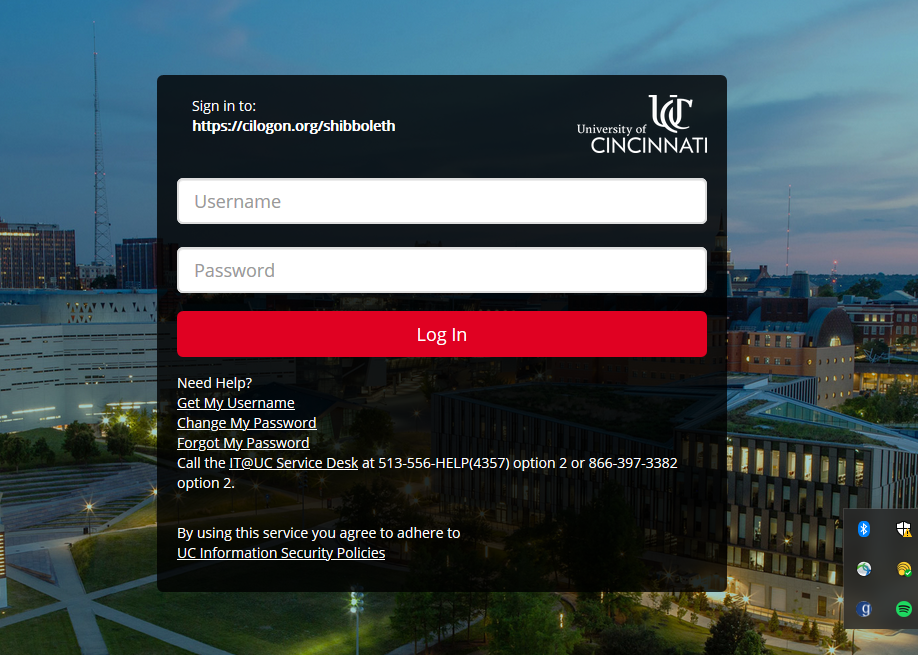
- Once the UC tag is selected and the continue button is pressed to will be asked to sign in and authenticate your UC login. This will be your 6+2 and standard password.
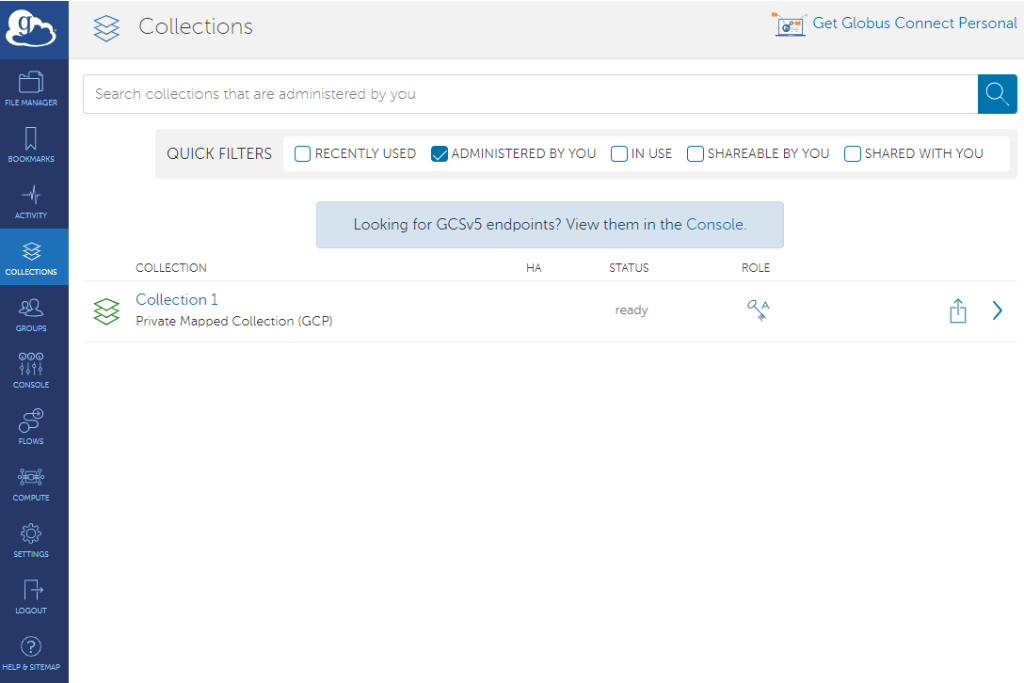
- After authentication you will be taken to the homepage or collections page of Globus. This is the page you will use to initiate file transfers once your personal endpoint is created.
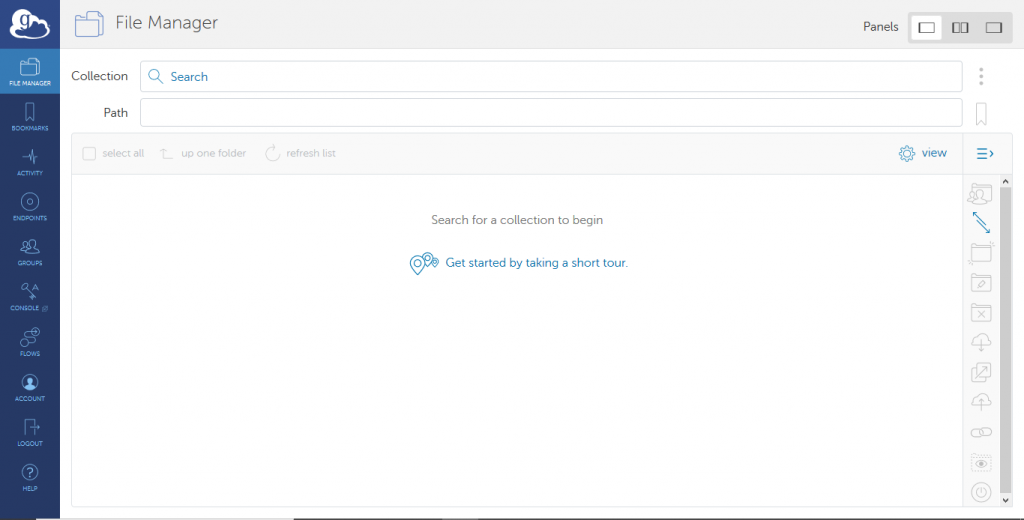
- On the left side of the screen you’ll see a collection of tabs allowing navigation of the Globus system. In order to install our personal endpoint we’ll need to navigate to the ENDPOINTS tab.
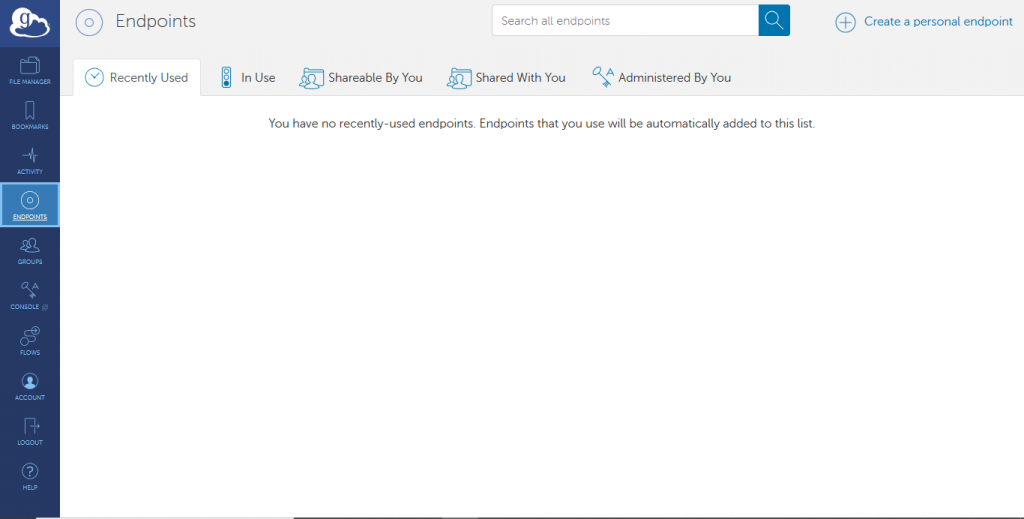
- The ENDPOINT tab allows for the management and monitoring of currently known endpoints. To create a personal endpoint click the “Create a Personal Endpoint” prompt in the top right corner of the page. This will take you to an additional page (see below) where you can select your OS.
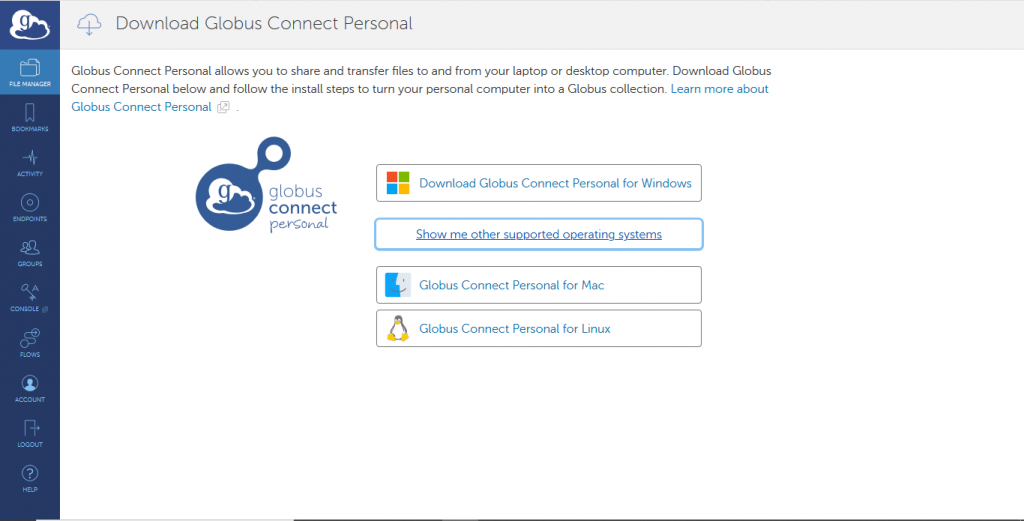
- Selection of your OS will initiate a download, this will contain the installer for your personal endpoint. Once downloaded the installer can be run by simply double clicking. Windows users may be warned that the executable is unrecognized (see below image).
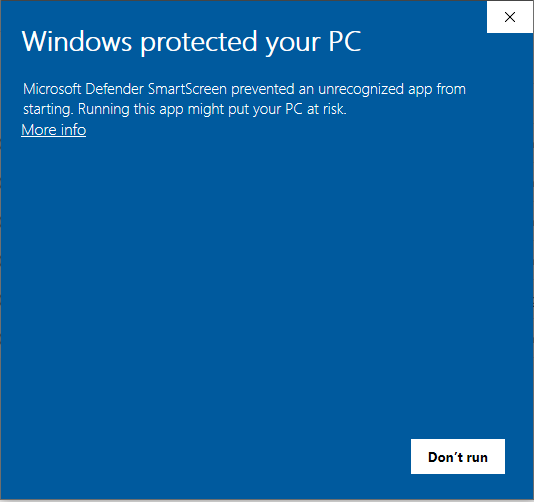
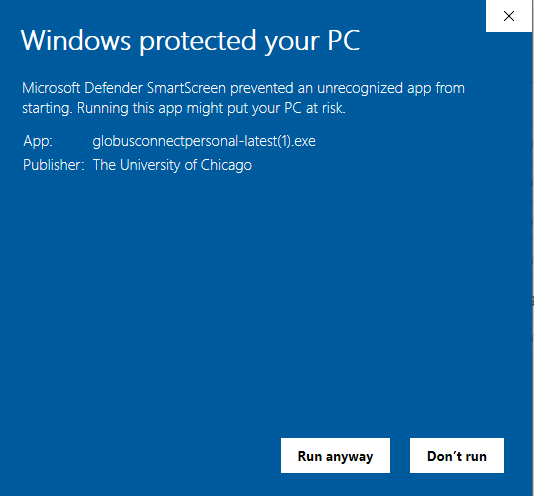
- Once the installation is completed, you are required to login using your UC login credentials
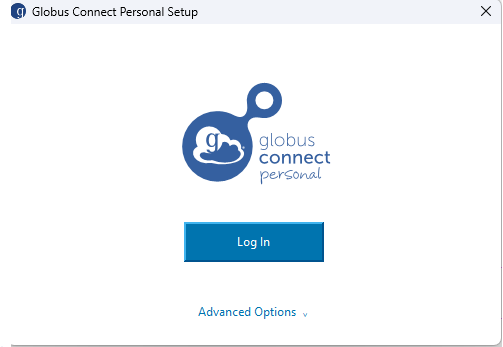
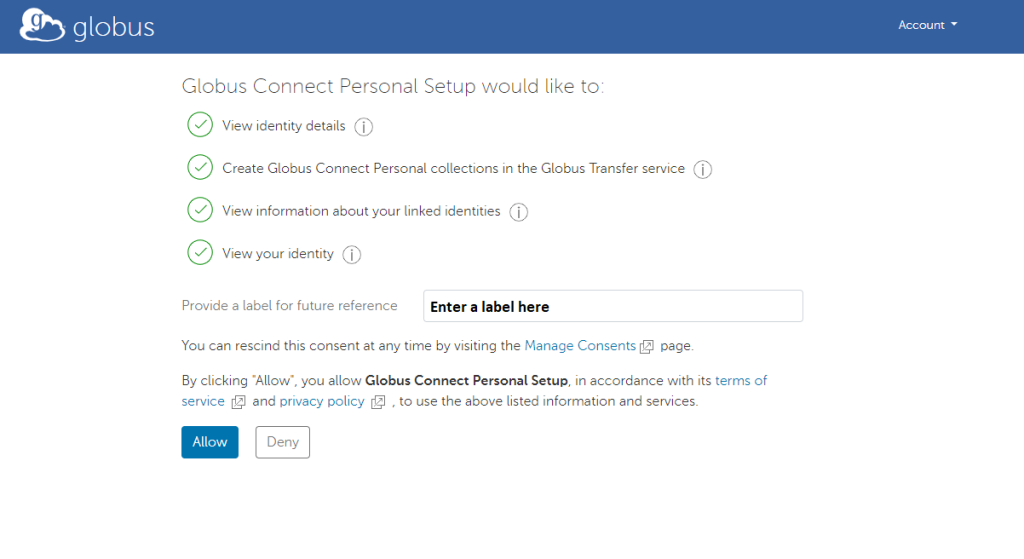
- Once you are logged in, enter a reference label for the local machine(laptop/work station). And complete the personal setup to add a new collection.
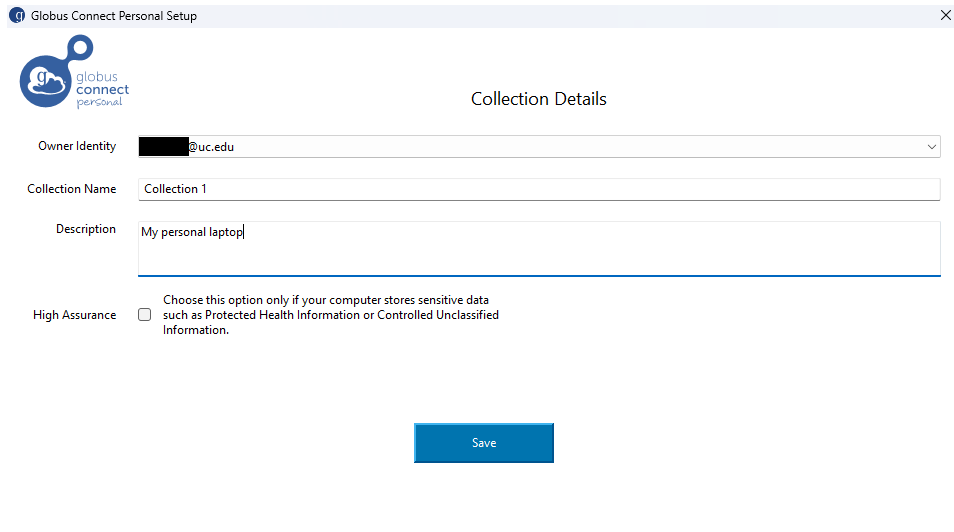
- Click on exit setup.
- Now, log back to Globus on your web browser, click on connections and search for connection you created for your local machine.